skip to main |
skip to sidebar

 Have you ever had a photo of a nice sunset or a landscape
with some clouds in it, but when you open the photo up, you wish the
clouds had a little more punch to them?
I have a technique I use on
almost all of my photos with clouds in them to add some extra punch.
It’s a pretty quick process and the results make a nice improvement
almost every time.
The beauty of this technique is, all this is done on
its own layer so if want to
reduce the effects, you can just lower the opacity and if you still
don’t like the effect, you can trash the layer. Either way, its just a
few mouse clicks to adjust or correct your photo.
Have you ever had a photo of a nice sunset or a landscape
with some clouds in it, but when you open the photo up, you wish the
clouds had a little more punch to them?
I have a technique I use on
almost all of my photos with clouds in them to add some extra punch.
It’s a pretty quick process and the results make a nice improvement
almost every time.
The beauty of this technique is, all this is done on
its own layer so if want to
reduce the effects, you can just lower the opacity and if you still
don’t like the effect, you can trash the layer. Either way, its just a
few mouse clicks to adjust or correct your photo.

 Grab one of your photos with a few clouds in it and follow along.
1. Whenever I work on a photo I always start by making a copy of my background layer (just in case) so click Cmd or Ctrl + J.
2. Now go up to the filter menu, click on it and scroll down to Other, then click on High Pass.
3. When the High Pass dialog box comes up,
slide the slider until your clouds look really sharpened
with lots of definition in your clouds. You don’t want to go overboard
because it will make your photo look really funky. Every photo will be
different so feel free to play around with your settings. When you’re
done tweaking it, click OK.
4. Now I desaturate my new layer, just
hold down Cmd + U or Ctrl + U to bring up your Hue and Saturation dialog
box, and then drag your saturation slider all the way to the left to
remove all the saturation.
5. Now go up to the top of your layers
panel and change the blend mode of our High Pass layer to either Overlay
or Hard Light, I usually prefer Hard Light myself.
Now depending on the photo you use, you might have to make some other minor adjustments to parts of your photo to either hide the sharpening effects or paint in the effects. This is actually quite easy to do using a layer mask and a nice soft brush.
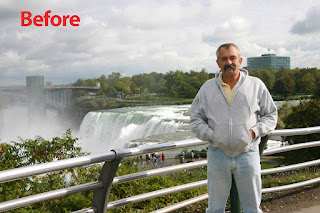
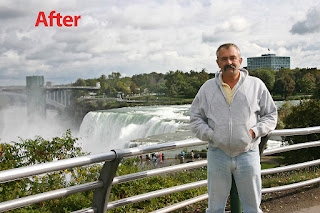 Most of the time it’s easier to use a black mask and
‘conceal’ all the sharpening, then I use a white brush to paint in the
sharpening on just my clouds. To get a black mask, hold the Alt key down
before you hit the mask button on the bottom of the layers panel. (the
mask button is the third one in from the left side of the panel) Make
sure your painting on the mask by clicking on the mask box. Remember, if
your effects are still a little too strong for your taste, just lower
opacity to your own liking. In this image, I painted in the effects with
a nice soft white brush. I use a Wacom tablet so I can paint with
various degrees of pressure, but you can do this with a mouse too.
Most of the time it’s easier to use a black mask and
‘conceal’ all the sharpening, then I use a white brush to paint in the
sharpening on just my clouds. To get a black mask, hold the Alt key down
before you hit the mask button on the bottom of the layers panel. (the
mask button is the third one in from the left side of the panel) Make
sure your painting on the mask by clicking on the mask box. Remember, if
your effects are still a little too strong for your taste, just lower
opacity to your own liking. In this image, I painted in the effects with
a nice soft white brush. I use a Wacom tablet so I can paint with
various degrees of pressure, but you can do this with a mouse too.
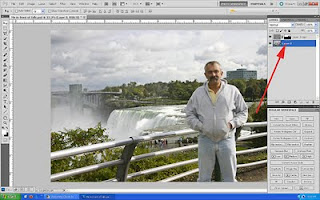 When I get it where it looks good to me, I tap on the top layer to make it active and then hold down the Ctrl + Shft + Alt keys and tap the letter E to make a flattened copy of all my layers right on top of my layers stack. Then I hit Ctrl + A to select it, (you’ll see the marching ants around it) then hit Ctrl + C to make a copy of that layer.
Now go over to the File menu, and click New. This will open a new blank document that will be the same size automatically. Now just hold the Ctrl key and tap V to paste your copied image into your new document and you’ll see a new single layered file, then just save your new image as you like. Now you can either save the original file with your changes or just close it out.
When I get it where it looks good to me, I tap on the top layer to make it active and then hold down the Ctrl + Shft + Alt keys and tap the letter E to make a flattened copy of all my layers right on top of my layers stack. Then I hit Ctrl + A to select it, (you’ll see the marching ants around it) then hit Ctrl + C to make a copy of that layer.
Now go over to the File menu, and click New. This will open a new blank document that will be the same size automatically. Now just hold the Ctrl key and tap V to paste your copied image into your new document and you’ll see a new single layered file, then just save your new image as you like. Now you can either save the original file with your changes or just close it out.

 Now that you know this little technique you can use it
to add a little punch to your clouds in own photos. Don’t be scared to
try this with other photos also. It works great on images when you want
to selectively sharpen only specific areas in your photos or to add some
extra drama to your images. Try it yourself on a few images, the
results might amaze you!
Now that you know this little technique you can use it
to add a little punch to your clouds in own photos. Don’t be scared to
try this with other photos also. It works great on images when you want
to selectively sharpen only specific areas in your photos or to add some
extra drama to your images. Try it yourself on a few images, the
results might amaze you!
Remember, as always, keep shooting and have some fun!
 If you’re like almost everyone new or semi-new to Digital Photography, you’ve probably noticed that your photos are starting to multiply. No, it’s not some new computer virus creating new photos on your system; you keep taking photos and your collection is just starting to take up more space. Maybe, the dreaded photography bug has bitten you?
Believe me, you’re not alone. Millions of people are purchasing Digital Cameras every year and a lot of them are starting to get the photography bug. Now not everyone who picks up a camera wants to be a professional photographer, but just about everyone who has ever taken a shot that makes them proud and gives them pleasure, has dreamed of making money from their photography. Maybe they’ll see a photo somewhere and say to themselves, I can do better than that or they might imagine one of their photos in the local newspaper or on a billboard, or maybe even hanging in a gallery somewhere?
Once upon a time this was limited only to professional photographers and it used to be that the equipment needed to capture quality images like we see daily, was very difficult to operate and far too expensive for the average person to go out and purchase. But luckily, this has all changed in recent years. Anyone who can afford just a few hundred dollars can get a camera capable of capturing these shots, and these days’ the buyers are more concerned about the quality of the image rather than what type of camera was used, how long the photographer that shot it has been shooting or what kind of formal education they have.
The good new is, that with a little effort and some research on the Internet, you too could find a way to sell some of those images that you’ve got sitting around on a hard drive or a disk somewhere. Wouldn’t it be nice to make a little extra cash to buy that new lens you’ve wanted or maybe you’ve thought about how you could turn you’re hobby into a side business? Whatever your reason might be I wanted to let you know about a new book out there that might help you out.
One of the websites I go to quite often is one aptly named: Photoprenuer.com. Maybe you’ve even visited it yourself. The site originated in 2007 and has since become a huge hit because this site is dedicated to helping people fulfill those dreams. It has tons of articles and new ideas on different ways you might market your own collection of photos. They have topics ranging from how you might start a photo business and selling the pictures you love, to articles about scams you might want to watch out for, and they even throw in some new shooting ideas now and then.
Well these fine people over there at Photoprennuer.com have put together a book titled ‘99 Ways to Make Money From Your Photos’. Like the cover says, the editors there have come up with 99 different ideas on how you too might start marketing your photos. They’ll show you some easy ways (and some not so easy ways) to turn your images into cash with proven ideas from experienced photographers who are doing it in today’s market. This book will give you tips on how you might sell your own vacation and travel photos and even give you ideas on how you might organize photo exhibitions yourself.
Maybe you’ve thought about shooting some stock photography? This book will teach you various ways on how you might get started and how to license your photos for selling to stock agencies. This book can be a very useful tool to get your creative juices flowing and spark some new ideas. Maybe this is something that interests you or you have someone on your Christmas list that might enjoy it? Either way you can check it out here at “99 Ways to Make Money From Your Photos”.
Remember, as always, keep shooting and have some fun!
Every now and then I come across a program that makes it feel like I’ve won the lottery. I had heard about Adobe Configurator and had even watched quite a few videos on it, but at the time I was using Photoshop CS3 and it does not work with anything before CS4. Myself, I usually upgrade about every other version and when CS5 was released I upgraded within the first week or so.
I spend a lot of time in Photoshop editing and manipulating photos and graphics, so anything that makes it quicker and easier I definitely like. I immediately went out and did some more homework on the Configurator. You can download it online for free at Adobe Labs.
At home I’ve got a two-monitor set-up and most of the time I would just put my panels on the other screen. I’m a big fan of Wacom Tablets and I’ve been using them for about 4 yrs. When I’m in Photoshop I rarely ever use a mouse so I’m using my pen to navigate and edit. I’ve been using Photoshop since 6.0, so I already knew tons of shortcut keys and commands, but even so, sometimes I had to use two hands to hit some of the shortcut keys and it would be much easier to just tap a button. If you are like me, you don’t use half of the items in the menus anyhow? I know that you can customize the menus and create your own shortcuts, but some times you still have to go hunt for certain tools and then you have to dig through menus or scroll through dialog boxes just to activate them. For years I thought that with all of Adobes technology that they should come out with a program that would let me create my own panels and add just the things I use daily, finally Configurator is that program!
The Adobe Configurator is a utility that lets you create custom panels (palettes) for use in Adobe Photoshop CS4 or CS5. It also works in Adobe InDesign CS5 for those who work with that program. Think of Configurator as a box of Legos--an application that lets you drag and drop all the tools and menu items in Photoshop, and then even lets you add actions or scripts, and even add various widgets complete with images or videos. Adobe Configurator makes it all this pretty easy to do. You can create your own panels in the Configurator panel and them just export the results into Photoshop or InDesign, nice huh?
I know it sounds pretty complicated, but seriously, I sat down with a cup of coffee (or two) and played around with it for a couple hours. But I finally created just the perfect panel for me. One of the biggest obstacles for me was making the panel the correct size. I wanted mine to look exactly like it was built into the program at the factory. I had to play around with it for quite awhile until I got the exact measurements for my own personal panel. The one I have in the photo is 230 wide by 372 height, but you can change yours to fit your own layout. You can also change the size of the buttons or re-arrange them to get just the right look. Once you get the hang of it, you can go back in anytime and easily edit your panels in minutes. Another nice feature is that if you have another PC (maybe a Laptop) you just download Configurator onto it and then you can just export the panel or panels you just created and instantly load them on that computer too! Through trial and error, I created the panel that works for me and now I have a custom panel that has all my favorite tools and actions loaded on it in one spot and I can control them all with the simple click of a button. One of the only obstacles was when creating or loading a Configurator Panel, you had to sign into Photoshop as the administrator. Believe me, it took quite awhile to overcome that problem. But, now I've got a Panel that does everything I want it to do and don't have to go hunting for a tool or remember the shortcut keys........Nice huh?
If you’re a trainer or you teach Photoshop or InDesign, you can also add video panels or text panels with buttons for any of the commands. Configurator will let you create as many panels as you’d like and set them up exactly the way you want. Load one at a time or load all of them, its up to you. I’ve included a few links to videos, grab yourself a coffee and check them out. One of these is narrated by John Nack of Adobe online and you might want to check that out. If you’re like me, you’re going to love Adobe Configurator too! I'm sorry to say that Configurator will not (at least I can't figure it out) on the Cloud, but if you've got a full version of CS4, 5 or CS6 your all set. I hope you enjoy this article. And remember, as always, keep shooting and have some fun!
 I know, I know, I’ve been really lame in getting new articles posted so I figured it was about time for a new one. This one is about my favorite tool in my photo editing toolkit, my Wacom Tablet.
Wacom recently released a new tablet called the Intous Pro, but at the time of this original post it was the Intuos 4. (June 2010) Wacoms top of the line tablet, called the Wacom Cintiq, is aimed at serious professionals, and you actually draw directly on your images right on the screen with your pen. Check it out here.
The update version of my table is currently called the Intous Pro and the price on them hasn't gone up. I'm sure this is another excellent tablet in their line-up. I’ve been using both of mine, the Intous 3 versions, since they were first released and absolutely love them. (purchased in 2004) Once I used one, I wondered how did I ever live without it. I was debating whether to get a small version to carry in my laptop bag and found a great deal on a smaller version of mine, and I picked it up. It fits right in my laptop case and comes with me everywhere now. I seriously don’t know how I would work on my photos or artwork without them.
I was reluctant about getting one for quite a while and had to do my homework online and watch some videos on the use of the tablets to see what all the hype was about. But when I actually saw a live demo of someone using one, I knew first hand what they were capable of and went right out and bought one the next day. Let me tell you, I have never regretted it. I'm updating the original post 6 yrs after the first one for a good reason. Yesterday, I went to help someone with some PC / Printer problems and had to edit a few photos to do some test prints. What a nightmare. Have you ever had to make a fairly complex selection using a mouse? The funny part was, my friend actually owns a Wacom and doesn't even have it hooked up! Anyhow, back to my post. Wacom even has some tutorials on their website to get you going quickly with all sorts of tips. Gone are the days of making complex selections using a mouse. Don't think you could use one? I gave my friend a simple test, I told him to try to write his name on one of his images with a mouse. Case closed.
My Intuos 3 tablets give me the power to quickly and professionally edit photos and create digital artwork by turning on the full power of Adobe Photoshop, Corel Painter, and believe it or not, over 100 other leading software applications.
 Intuos pen tablets use Wacom's Pen-abled technology to give you the natural feel and superior performance of Wacom's patented cordless and battery-free tablet technology. You will find that using the Intuos pen and mouse gives you a lot more control, comfort, and productivity. I alternate between the comfortable Grip Pen and the ergonomic five-button mouse. It is an easy and natural way to work.
I’m also a big fan of the Express keys and Touch Strips built into the tablets. I use them every time I’m on my computer.
We are all used to using a regular pen or pencil so using a pen tablet comes really easy. The tablet makes it is easy to use the pen because every point on the tablet has a matching point on the screen. When you move your pen over the tablet the cursor moves in precisely the same way on the screen. Where you touch your pen tip to the tablet is where you click. Also, the tablet automatically configures itself to whatever size monitor(s) you have, and I personally have two monitors and the Wacom knows this and works great. Nice huh?
The Intuos 3 cordless pen features a larger grip for comfort, 1024 levels of pressure sensitivity, a Duo-Switch and even a built-in eraser on the end. It even comes with its own pen stand for when your using the mouse. The Duo-Switch on the side of the pen and is nice because you can program the buttons for various functions. I have mine set to double-click and right-click to open programs or to use menus etc.
The pressure option is also really cool. You can program it to use pressure sensitivity or turn it off, usually in the program you're using. It’s like using coloring crayons, press hard for dark color, lightly for light color, or if set for pressure, it will determine how large or small your brush size is. This is an excellent feature when using regular brushes or adjustment brushes in any of your favorite editing programs.
The pen and the mouse both work without any batteries, just by plugging the tablet in to a USB port. The pen comes with 3 tip feels: standard, stroke, and felt, but I’ve only used the standard and it suits me fine. They also have optional air-brush pens which are supposed to be great for artwork and graphics.
 The 5-button mouse on the Wacom is great. These days most mice have 2 buttoms and a scroll wheel. Well this mouse has 5 buttons. It has the usual left and right buttons and a scroll wheel, but on both sides is a little button that is automatically set to activate the back and forward keys on your web browser. You know when you open a web page and then click a link, it takes you to another web page. Usually you use the back and forward arrows to navigate back or forward, well with the Wacom there is a button on both sides of the mouse to do just that, one for forward the other for back. I had my first Wacom Tablet for over a year before I even knew they were there! (so much for reading owners manuals huh?) It’s just another nice feature that Wacom added which I use daily.
 Some other great features are the Express keys and the Touch Strips. The finger-sensitive Touch Strip allows for quick zooming, panning and scrolling or you can set them up to change brush sizes etc. I don’t really use the Touch Strips that much because I’m a big fan of keyboard shortcuts, but I definitely use the Express keys. You can program these to do just about anything or open any program you want. I’ve got mine set up to open various programs I use all the time. So if I want to check my mail, I press one key, (the red one in the photo) or if I want to go on the Internet I press another. I’ve got others set to open Photoshop, the Bridge, Lightroom and Corel Painter, Word and Excel, all with the touch of a single button! These will work with all your favorite programs on your computer so there’s no more clicking on an icon on your desktop or scrolling through menu’s anymore. Nice huh?
I could go on and on about how much I love my tablets but if you spend any amount of time using Photoshop, Lightroom or Painter you’ll regret putting off buying one for so long. It’s not a huge investment, but definitely worth it. I've been using both of my Intous 3 tablets since they first came out (2004) with no problems ever, you got to love that. There are many models to choose from ranging from hobbyist to pro and they even offer cordless tablets. If you ever get the chance to use one or see one in use, you owe it to yourself to check them out. I’ve included this link to the Wacom Tablet section of B+H Photo, go check them out. If your a designer or a photographer you owe it to yourself to check them out and see all the new models.
Remember, keep shooting and have some fun!

 Have you ever had a photo of a nice sunset or a landscape
with some clouds in it, but when you open the photo up, you wish the
clouds had a little more punch to them?
Have you ever had a photo of a nice sunset or a landscape
with some clouds in it, but when you open the photo up, you wish the
clouds had a little more punch to them? 
 Grab one of your photos with a few clouds in it and follow along.


 When I get it where it looks good to me, I tap on the top layer to make it active and then hold down the Ctrl + Shft + Alt keys and tap the letter E to make a flattened copy of all my layers right on top of my layers stack. Then I hit Ctrl + A to select it, (you’ll see the marching ants around it) then hit Ctrl + C to make a copy of that layer.
 Now that you know this little technique you can use it
to add a little punch to your clouds in own photos. Don’t be scared to
try this with other photos also. It works great on images when you want
to selectively sharpen only specific areas in your photos or to add some
extra drama to your images. Try it yourself on a few images, the
results might amaze you!
Now that you know this little technique you can use it
to add a little punch to your clouds in own photos. Don’t be scared to
try this with other photos also. It works great on images when you want
to selectively sharpen only specific areas in your photos or to add some
extra drama to your images. Try it yourself on a few images, the
results might amaze you!


